GTD with Workflowy is a good fit for people who want a serious task system without building a second job inside Notion. Workflowy is fast, flexible, and almost impossible to overcomplicate unless you work at it. That matters when your real work is split across email, Slack, client calls, and a notebook beside your coffee mug.
I have tested plenty of productivity systems that looked excellent on a calm Sunday afternoon and collapsed by Tuesday. The useful question is not whether a tool has impressive features. It is whether you can capture a thought while walking into a meeting, find the next action later, and trust the list when your brain is already full. GTD with Workflowy passes that test when the setup stays deliberately boring.
What GTD with Workflowy is meant to solve
Getting Things Done, or GTD, is built around five activities: capture, clarify, organize, review, and engage. Workflowy gives you one expandable outline for those activities. You can create nested lists, search quickly, add tags, and zoom into a single project without losing the larger picture.
The key is separating projects from actions. “Renew client contract” is a project because it requires several steps. “Email the client for the renewal date” is an action. If your list contains only vague project names, you still have to think before every work session. That is exactly the mental load GTD is supposed to remove.
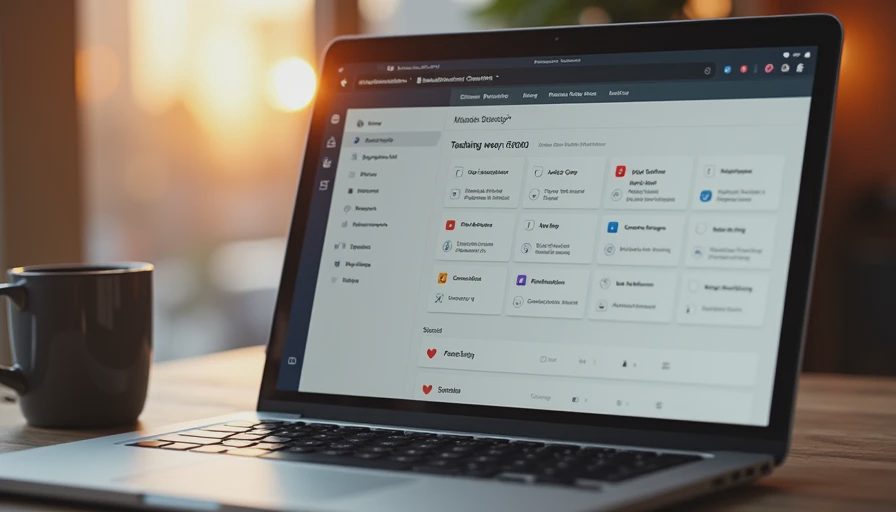
My top-level Workflowy structure is small: Inbox, Projects, Areas, Someday, and Reference. Inbox is where everything lands. Projects contain outcomes with visible next actions. Areas cover ongoing responsibilities such as Sales, Finance, Content, and Family. Someday holds ideas I am not committing to this month. Reference stores useful information that does not require action.
Build the capture habit before polishing the outline
Start with the Inbox. Do not create twelve categories on day one. The fastest capture system is one where you can dump “call insurance broker,” “send revised proposal,” or “figure out the broken Zapier step” without deciding where each item belongs.
Workflowy is especially useful here because a new bullet takes seconds. I keep the web app open during work and use the mobile app for thoughts away from the desk. Email still creates most of my inputs, so I either turn an email into a clear action immediately or copy a short reminder into the Inbox. I do not paste entire email threads into my task list. That just moves clutter from one window to another.
A capture habit only works if you empty the Inbox regularly. Once or twice a day, process each item with a simple set of questions. What is this? Does it require action? If not, delete it, save it as reference, or move it to Someday. If it does require action, decide the next physical step. “Work on website” is not a step. “Draft the services page headline” is.
Use tags as views, not as a second filing cabinet
Tags can make GTD with Workflowy much more useful, but tags can also become a tiny bureaucratic nightmare. I use a few context tags such as #computer, #calls, #errands, and #waiting. I also use #quick for tasks that take about fifteen minutes or less. That is enough to choose useful work when I have a small gap.
Avoid tagging every item by client, urgency, energy level, project phase, and preferred beverage. If you need five filters to understand a task, the task is probably written poorly. A clear action plus one useful context beats a decorated sentence nobody wants to read.
For example, under a project called “Launch March operations newsletter,” I might have “Draft opening section #computer,” “Ask designer for header image #waiting,” and “Review subscriber export #computer.” The project explains the outcome. The actions explain how to move it forward. The tags help me choose without forcing me to remember the whole project.
Organize projects so the next action is obvious
GTD with Workflowy works best when every active project has at least one next action visible beneath it. I do not need a detailed project plan for replacing a printer. I do need more than “replace printer” if the purchase involves comparing models, checking the budget, and getting approval.
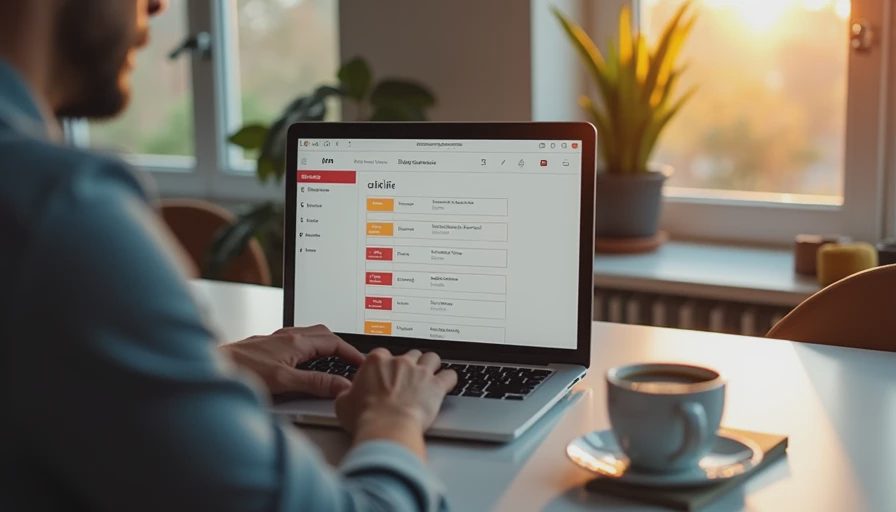
A practical project outline might look like this in plain text: “Replace office printer,” followed by “Measure desk space,” “Compare Brother and HP models,” “Ask bookkeeper about equipment budget,” and “Order selected model.” Each line is actionable, and the next step is easy to spot.
I keep completed actions tucked under the project rather than deleting everything. That creates a lightweight record without turning Workflowy into a database. When a project is finished, I add a completed date, collapse the branch, and move on. The system should show current commitments first, not make me scroll through a museum of old tasks.
For client work, I create one project per outcome instead of one enormous client list. “Acme onboarding” is too broad if it contains contracts, kickoff preparation, invoice questions, and training. Separate outcomes reduce ambiguity and make weekly reviews much faster.
Make the weekly review the engine of the system
A list is not trustworthy just because it exists. The weekly review is where GTD with Workflowy earns its keep. I block roughly thirty to forty-five minutes on Friday afternoon or Sunday evening, depending on the week. First, I empty loose notes, scan email for commitments, and review open projects. Then I check waiting items, Someday ideas, and calendar commitments.
The important part is not checking boxes. It is asking whether every active project still has a next action and whether the list reflects reality. A task that says “follow up with vendor” but has no date or context is not useful. Rewrite it as “Email Dana for the shipping confirmation on Thursday #waiting.” Specific wording prevents the same thought from returning to your head all week.
I also delete aggressively. A “maybe” task that has survived six weekly reviews is often a polite way of saying no. Remove it or move it to Someday with a review date. Your system gets lighter every time you stop pretending an old intention is still important.
Daily use: choose work without rebuilding the system
Each morning, I look at the calendar first, then the Workflowy list. Calendar commitments are hard edges. The task list fills the open space around them. I choose one meaningful action for each major project, plus small administrative work if the day has gaps.
This is where GTD with Workflowy differs from a giant daily checklist. I am not trying to predict every interruption. I am selecting the next useful action from a trusted inventory. If a customer call runs long, I can search #quick or #calls and choose something realistic instead of abandoning the entire day.
For a small team, keep personal task lists personal unless shared visibility is genuinely needed. Workflowy can hold team notes, but it should not become a fake project management platform. Shared work still needs clear owners, deadlines, and a communication channel. Use the tool for thinking and tracking; use a short message or meeting for decisions that affect other people.
Common mistakes that make the setup fail
The first mistake is turning every task into a project. “Buy printer ink” does not need a five-level hierarchy. The second is hiding important work in vague labels such as “marketing” or “admin.” The third is collecting tasks without scheduling a review. That is not a trusted system; it is a digital junk drawer.
Another mistake is copying someone else’s template exactly. Start with Inbox, Projects, Areas, Someday, and Reference. Use it for a week. Notice where work gets stuck, then change one thing. Repeat what works. Tweak one thing at a time.
The best GTD with Workflowy setup is not the most elaborate one. It is the one you will open when you are tired, behind, and annoyed. If it takes longer to set up than to do the actual work, I’m out. Keep the outline plain, write real next actions, review it weekly, and let the system carry the reminders your brain was never meant to store.




No feedback yet — submit the first.